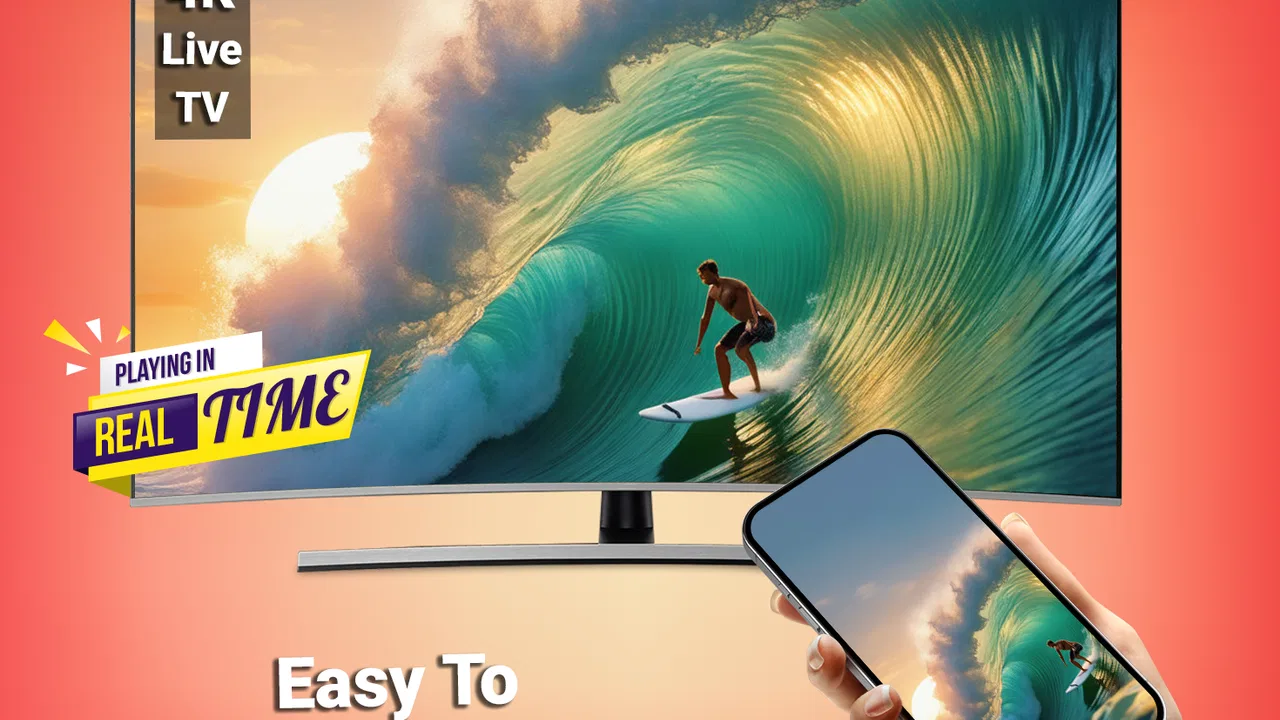
Smart TV Cast: Screen Share
- 4.4
- Rating
- 10.00M
- Installs
- Free
- Price

 Analysis by App-foxy
Screen sharing sounds simple until the phone and television refuse to see each other. That is where Smart TV Cast: Screen Share becomes interesting. Developed by Technoline Apps, this free Tools app is designed to connect a phone to a TV and send videos through Miracast screen mirroring. I tested it with the mindset of an everyday user rather than someone setting up a showroom: I wanted to know where the process feels smooth, where it becomes confusing, and whether it is genuinely useful when I simply want a larger screen.
My overall impression is positive, but conditional. The app can make a compatible TV connection easier to start, especially when the phone’s built-in casting menu is buried or inconsistent. At the same time, it cannot solve every television, network, or compatibility problem. The most important lesson is that successful mirroring depends on the phone, the TV, and the connection between them. The app is a helpful bridge, not a universal repair tool.
Getting past the first connection problem
The first place many people get stuck is before any video begins. They open the app, expect an immediate television list, and see nothing useful. That does not automatically mean the application is broken. Wireless display tools depend heavily on whether the TV is awake, whether its screen-sharing function is available, and whether both devices are ready to communicate.
You May Also Like

 Blood Strike: 2.5 Anniversary
Blood Strike’s Loadouts Turn Every Drop Into a Tactical Gamble
A close look at Blood Strike’s custom loadouts: how fast access to signature weapons reshapes its battle royale rhythm, rewards preparation, and narrows the gap between fights.

 Pandora - Music & Podcasts
Pandora’s Music Is Easy to Start, but Harder to Recover
Pandora’s strength is its low-effort path from a seed to a station. Its weak spot is how much confidence it asks you to place in connection, setup, and quiet recovery.

 8 Ball Pool
 Is Built on Rivalries, Rematches, and Routine
A close look at the rivalries, rematches, shared routines, and unanswered safety questions that turn a quick pool match into a persistent mobile community.

 Samsung Music
’s Quiet Strength Is Playing What You Already Own
Its reach comes less from spectacle than from dependable access to a personal library. That simplicity is both the app’s strongest retention engine and its ceiling.

 AccuWeather: Weather Radar
AccuWeather Review: A Quick, Clear Forecast for Everyday Decisions
For everyday plans, the best forecast is the one you can understand quickly. AccuWeather makes rain timing, radar, and local conditions easy to act on, with a few trade-offs.

 Hill Climb Racing
Why Hill Climb Racing Still Turns Crashes Into One More Run
A tiny car, a bumpy hill and one more upgrade: Hill Climb Racing keeps resurfacing because its simple chaos makes every near-miss feel personal.
More From Our News Desk



I found it useful to treat the opening screen as the beginning of a connection workflow rather than as a media player. First, I wake the television and open its screen-mirroring or wireless-display input if the model requires that step. Some televisions wait for a connection request, while others only become visible after the relevant input is selected. Starting the app before preparing the TV can make the process appear less reliable than it really is.
The phone also needs a stable wireless connection. For a normal home setup, I keep the phone and television connected to the same Wi-Fi network and avoid switching between networks during discovery. A guest network, an extender that isolates devices, or a phone that has silently moved to mobile data can interrupt the search. This is one of the most practical checks because it takes seconds and often explains an empty device list.
Another common source of confusion is the phrase “screen mirroring.” It does not mean the app can turn any television into a wireless display. The receiving TV must support a compatible casting or Miracast-style connection. If the television only accepts a particular proprietary method, the app may not be able to create a link that the hardware does not support.
That distinction matters when deciding whether to keep troubleshooting. If the TV never exposes a wireless display option and does not appear anywhere on the phone, repeatedly tapping scan is unlikely to change the result. In that situation, the better alternative may be the television manufacturer’s own app, a supported streaming device, or a physical cable. Smart TV Cast: Screen Share is most convincing when the hardware already has a compatible wireless path.
Small preparation steps that save time
Before I try to cast, I make sure the phone is unlocked, the app is open, and the television is not busy inside another source or application. I also close unrelated casting sessions from other devices. A TV that is still connected to a family member’s phone can behave as though it is unavailable, even though everything looks normal from my side.
I then start with a short, ordinary video rather than a long presentation or a high-resolution file. This is not because the app is limited to short clips; it is a sensible diagnostic method. If a small test works, I know the basic connection is alive before I spend time arranging the content I actually want to watch.
The key setup insight is to prepare the receiver first. Many failed attempts begin on the phone, while the television is still waiting on the wrong input. Changing that order makes the experience less frustrating and gives the app a fairer test.
The app is free to install, which makes trying it low-risk. It is rated for Everyone and supports devices running Android 7.0 or later. Those requirements make it accessible to many older phones, although compatibility with the television remains the more important question in everyday use.
What the connection feels like in normal use
Once the TV is discoverable, the basic idea is straightforward: choose the available display and begin sharing. I like this approach for casual situations because it avoids moving files between devices. A video that is already on my phone can be shown on the larger screen without first uploading it or finding a separate television application.
There is a useful difference between casting a specific video and mirroring the phone’s broader display. Sending only content can be cleaner when I want to watch something, while full screen sharing is more flexible for showing photos, a browser page, or an app that has no television version. The trade-off is that mirroring exposes everything that appears on the phone. Notifications, incoming messages, and accidental taps can become visible, so I enable a quiet mode and prepare the screen before sharing anything personal.
This makes the app particularly handy for an informal evening at home. Imagine receiving a video on your phone that is too good to pass around on a small screen. I would wake the TV, open its compatible mirroring mode, confirm both devices are on the same network, connect through the app, and start with a short clip. If the connection holds, I can continue without sending the file to another service. If it fails, I have learned that before gathering everyone around the television.
Recovering when mirroring stops working
Wireless connections can fail after appearing to work. The image may freeze, the TV may disconnect, or the phone may continue showing a connected state while nothing changes on the larger screen. My first response is not to uninstall the app. I stop the session, return the TV to its normal input, and begin a fresh connection. A clean restart is often more useful than repeatedly trying to force the same session back to life.
If that does not help, I check the network again. Phones can change access points as signal conditions shift, especially in homes with multiple routers or extenders. The TV may remain on one network while the phone joins another with a similar name. Reconnecting both devices to the same ordinary home network is a better recovery step than changing several settings at once.
I also keep the phone reasonably close to the router and television during testing. Distance is not the only factor, but a weak wireless environment makes it harder to tell whether the problem is discovery, bandwidth, or the TV itself. Once the connection is stable, I can move back to a normal viewing position and see whether the issue returns.
For longer viewing, I avoid unnecessary activity on the phone. Switching rapidly between demanding apps, locking the screen, or allowing aggressive battery management to pause background behavior can interrupt a mirroring session. The exact behavior varies by phone, but the practical rule is simple: keep the device awake and treat it as the source of the display while the session is active.
One of the less obvious trade-offs is that screen mirroring makes the phone part of the viewing chain. If the phone receives a call, loses wireless stability, or runs low on battery, the television experience can suffer. A television-native app is usually better for a long movie because it removes the phone from the middle. Smart TV Cast: Screen Share is more attractive for quick sharing, personal media, demonstrations, and content that is awkward to locate directly on the TV.
A sensible troubleshooting order
Confirm that the television is awake and waiting in its wireless display or mirroring mode.
Check that the phone and TV are using the same Wi-Fi network, not merely networks with similar names.
End any earlier casting session on either device.
Close and reopen the connection attempt instead of repeatedly selecting a stale device entry.
Test with a simple video before judging performance with demanding content.
This order matters because it separates discovery problems from playback problems. If the TV never appears, focus on compatibility and network visibility. If it appears but disconnects during playback, focus on signal quality, phone workload, and the particular content. Treating every failure as the same problem leads to unnecessary changes and makes troubleshooting harder.
When the app is not the real cause
It is easy to blame the app when the television is the actual limitation. Some TVs support screen sharing only under certain inputs, while others use a different wireless standard. A phone may also support one casting method more reliably than another. These are ecosystem issues, not necessarily flaws in Technoline Apps’ software.
Content can create another misleading symptom. A local video that plays normally on the phone may behave differently when mirrored, and online video depends on the network throughout playback. If one file works but another does not, I would test a second source before concluding that the entire connection is unusable. A single problematic video is weak evidence against the app.
Performance expectations also need to be realistic. Mirroring a static photo or a web page is less demanding than sending fast-moving video while the phone is handling other tasks. If the picture stutters, reducing activity on the phone and improving the wireless environment are sensible first steps. If the TV continues to struggle with every type of content, a wired connection or a dedicated streaming device may provide a more dependable result.
Privacy deserves attention as well. Because mirroring can show the phone’s full display, I would not use it casually for banking, private conversations, or confidential work in a shared room. The safest workflow is to close sensitive apps, silence notifications, and preview what is visible before connecting. This is a practical habit, not a reason to avoid the app, but it is important for anyone who assumes that only the selected video will appear.
There is also a difference between convenience and control. A dedicated TV application usually offers better playback controls, independent browsing, and less dependence on the phone. A cable can be more predictable for a presentation or a long session. The app wins when I need a quick wireless connection and the TV already supports the required standard. It is not the best choice when reliability matters more than convenience or when I need to leave the phone free.
Who will benefit most from it
I would recommend it to people who regularly want to show phone content on a compatible television without transferring files. It is a good fit for sharing personal videos, displaying photos, demonstrating a mobile app, or watching something casually when the TV does not provide a convenient native route. It also suits users who find their phone’s built-in wireless display controls difficult to locate.
I would be more cautious for someone buying an app specifically to make an incompatible TV work. No software can replace the receiving technology required for wireless mirroring. I would also steer away from it as the main solution for daily long-form streaming if the television already has strong native applications. In that case, using the TV directly is usually simpler and avoids draining the phone or exposing its notifications.
The app has reached a broad audience, with more than five million installs and an average rating of 4.4 from roughly ninety-seven thousand ratings. Those figures suggest that the basic use case is resonating with many people, but they should not replace a compatibility check. A popular mirroring tool can still be the wrong choice for one particular phone-and-TV combination.
Version, cost, and the value question
The current version is 9.5, and the app remains free to download. There are in-app purchases ranging from $4.99 to $49.99 per item, so I would pay attention to what is offered during use rather than assuming every possible function is included without cost. The free entry point is useful for testing whether the connection works in a real home before deciding whether any optional purchase is worthwhile.
That trial-first approach is especially important here because the biggest variable is not the app alone. If the TV cannot be discovered, paying for additional functionality would not solve the fundamental compatibility issue. I would first verify that the phone can connect, that a short video plays, and that the session remains stable for the kind of sharing I actually intend to do.
After using it, I see Smart TV Cast: Screen Share as a practical helper rather than a complete replacement for every casting method. Its strongest quality is convenience when the hardware is ready. Its weakest point is that the setup can feel uncertain when the TV is not prepared correctly or when the network hides devices from one another.
My practical verdict is simple: try it when you need quick wireless screen sharing and have a compatible TV, but do not treat it as a guarantee of compatibility. For occasional videos, photos, and demonstrations, it can save several annoying steps. For private content, demanding playback, or dependable all-evening viewing, I would choose a TV-native option or a wired connection when available.
Technoline Apps has made a useful Tools app for a very specific everyday problem: getting phone content onto a larger screen with less searching. The experience improves considerably when I prepare the television first, verify the network, start with a small test, and know when the hardware—not the app—is responsible for the failure. Used with those expectations, it is worth trying, especially because the initial download is free and the age rating is Everyone.
FAQs for Smart TV Cast: Screen Share
01What devices are compatible with Smart TV Cast: Screen Share?
Smart TV Cast: Screen Share is compatible with a wide range of devices, including most modern Android and iOS smartphones and tablets. It supports casting to various smart TVs, including brands like Samsung, LG, and Sony, as well as casting devices like Chromecast and Roku. Ensure your devices are connected to the same Wi-Fi network for optimal performance.
02How do I set up Smart TV Cast: Screen Share on my device?
To set up Smart TV Cast: Screen Share, download the app from the Google Play Store or Apple App Store. Once installed, connect your phone and smart TV to the same Wi-Fi network. Open the app and follow the on-screen instructions to pair your device with the TV. The process is user-friendly and typically takes just a few minutes.
03Is Smart TV Cast: Screen Share free to use?
Smart TV Cast: Screen Share offers a free version with basic features, allowing users to cast their screens to a TV. However, there are premium features available through in-app purchases or subscriptions, such as ad-free usage, enhanced video quality, and additional customization options. Review the app’s pricing details to decide which version suits your needs.
04What kind of content can I stream using Smart TV Cast: Screen Share?
With Smart TV Cast: Screen Share, you can stream a wide variety of content, including videos, photos, and music from your device to your TV. It also supports streaming from popular apps like YouTube and Netflix. Ensure the apps you wish to stream are installed on your mobile device and compatible with screen sharing.
05Are there any known issues with Smart TV Cast: Screen Share?
While Smart TV Cast: Screen Share generally provides a smooth experience, some users may encounter issues like lag or connectivity problems. These are often due to network instability or outdated app versions. Regularly update the app and ensure your Wi-Fi connection is strong to minimize these issues. For persistent problems, consult the app's support section for troubleshooting tips.
Pros
- Easy to set up and use with most devices.
- Supports high-quality video streaming.
- Compatible with multiple TV brands.
- Minimal lag for a smooth experience.
- Free version offers essential features.
Cons
- In-app ads can be intrusive.
- Limited functionality without premium.
- Occasional connectivity issues.
- Requires stable Wi-Fi for optimal use.
- Not all devices are supported.

Smart TV Cast: Screen Share
Gallery